OpenAI Ads UTM Tracking in GA4: The Complete Setup
OpenAI added dynamic URL parameters to Ads Manager Beta, giving advertisers a way to append campaign values to landing page URLs using static text, supported macros, or both. The field is called Landing page query parameters, and Ads Manager populates the macros at delivery time.
This matters because OpenAI Ads Manager has no auto-tagging. There is no click identifier that Google Analytics 4 recognizes automatically, so campaign parameters only exist in your analytics if you put them there. This guide covers the macros OpenAI supports, how to apply them, where untagged ad traffic ends up in GA4, and the two channel-group changes that separate paid ChatGPT clicks from organic ones.
TL;DR — OpenAI Ads Manager supports five macros for landing page query parameters and no auto-tagging, so untagged ad clicks are classified into GA4's AI Assistants channel alongside organic ChatGPT traffic. Tag with utm_source=openai and utm_medium=cpc, then create a custom Paid AI channel in GA4 and add an exclusion to the Paid Other rule so paid and organic AI traffic report separately.
In This Guide
1. What OpenAI Released: The URL Macros
Dynamic URL parameters are available in OpenAI Ads Manager Beta. You can add custom landing page query parameters using your own text, supported macros, or a combination of the two, and Ads Manager resolves the macros automatically when the ad is served.
Ads Manager supports five macros. The in-product help text lists them under the field itself:
| Macro | Resolves to | Recommended UTM slot |
|---|---|---|
{campaign_id} | Campaign identifier | utm_id |
{ad_group_id} | Ad group identifier | utm_term |
{ad_id} | Individual ad identifier | utm_content |
{ad_account_id} | Ad account identifier | utm_source_platform (optional) |
{oppref} | OpenAI click reference | Leave out of UTMs — used for conversion attribution |
{oppref} is the OpenAI click reference value. It supports server-side conversion attribution through the Conversions API rather than analytics channel reporting, so keep it separate from your UTM parameters. If you pass server-side conversions, preserve and send this value so events attribute correctly.
2. How to Apply Them, Step by Step
- Open the Campaigns, Ad Groups, or Ads page in Ads Manager Beta.
- Open the three-dot menu and select Edit campaign, Edit ad group, or Edit ad depending on the level you want to set.
- Scroll to Landing page query parameters in the edit modal.
- Paste your parameter string — the UTM portion only, with no leading
?and no domain. - Save. Parameters apply to ads served after the change.
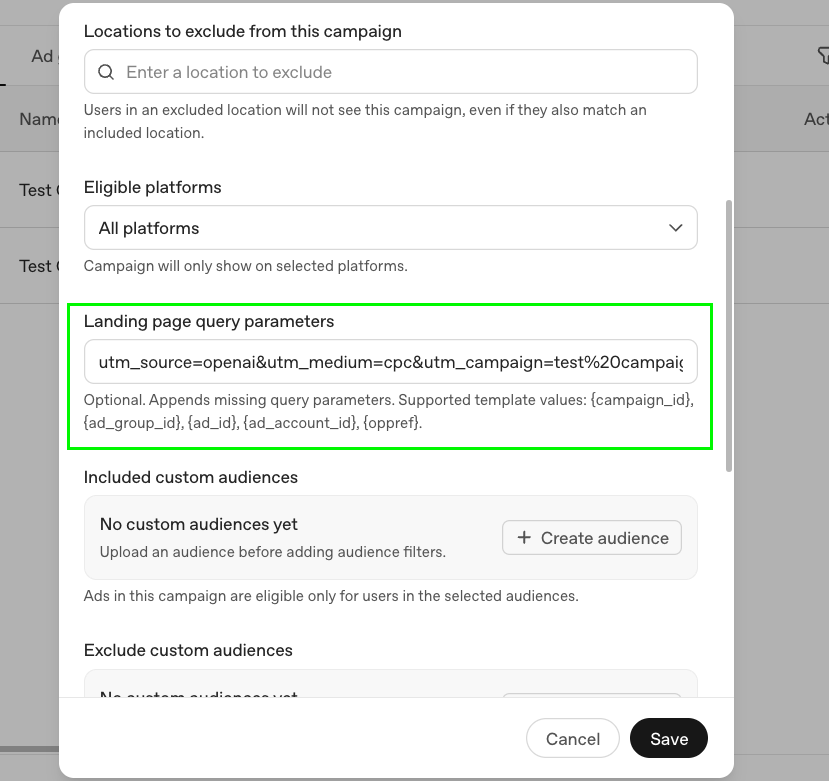
Recommended values
Set these at the campaign level so every ad group and ad inherits them:
| Parameter | Value | Why |
|---|---|---|
utm_source | openai | Names the platform rather than the surface. Keeps reporting stable if OpenAI adds placements beyond ChatGPT. |
utm_medium | cpc | A GA4-recognized paid medium, so the session is classified as paid rather than organic. |
utm_campaign | Readable campaign name | Legible in reports without a lookup table. |
utm_id | {campaign_id} | Ties the session back to the platform record. |
utm_term | {ad_group_id} | Ad group granularity. |
utm_content | {ad_id} | Creative-level performance. |
As a single string for the Landing page query parameters field:
utm_source=openai&utm_medium=cpc&utm_campaign=spring_sale&utm_id={campaign_id}&utm_term={ad_group_id}&utm_content={ad_id}
Macros resolve to numeric identifiers rather than readable names, which is why {campaign_id} belongs in utm_id and a human-readable value belongs in utm_campaign. Reversing the two fills your acquisition reports with numeric strings.
Which level wins
Parameters can be set at four levels, and more specific settings take precedence. The order is Ad URL, then Ad, then Ad Group, then Campaign.
| Level | Priority | What to put here |
|---|---|---|
| Ad URL | Highest — never overwritten | Nothing. Keep landing page URLs clean. |
| Ad | Overrides ad group and campaign | One-off creative tests needing a distinct value |
| Ad Group | Overrides campaign | Audience or theme distinctions |
| Campaign | Lowest — the default | Source, medium, campaign name, and macros |
3. Where Untagged OpenAI Ads Traffic Lands in GA4
Untagged OpenAI Ads clicks are classified into GA4's AI Assistants channel. Google added this channel to the Default Channel Group in May 2026, and it captures traffic from recognized AI assistant referrers by assigning a medium of ai-assistant. ChatGPT is one of those recognized referrers, so paid clicks arriving from a ChatGPT ad are treated exactly like organic ChatGPT citation clicks.
The sessions are counted. The problem is that they are counted in the wrong place — pooled with traffic you did not pay for, in a channel that contains no cost data. There is no way to evaluate OpenAI Ads spend from a bucket that blends paid and organic clicks from the same domain.
gclid and Microsoft Advertising has its own auto-tagging, both of which GA4 recognizes without configuration. OpenAI Ads has neither. The Landing page query parameters field is the only mechanism that tells GA4 a click was paid, and it is off by default.
Tagging fixes the classification, but only partway. With utm_source=openai and utm_medium=cpc, GA4 moves the session out of AI Assistants and into Paid Other — the medium matches a paid pattern, but openai is not on GA4's list of recognized search or social sites, so it does not qualify for Paid Search or Paid Social. Paid Other is a catch-all shared with every other unrecognized paid source, which is an improvement over AI Assistants and still short of useful.
Two channel-group edits solve it properly.
Run the Free GA4 UTM Audit
Find out which of your paid campaigns are landing in the wrong channel — or no channel at all — using your own GA4 data.
Launch Free Audit →4. What to Configure in GA4
The goal is a dedicated Paid AI channel that captures OpenAI Ads traffic and nothing else, with the Paid Other rule adjusted so the two do not compete. Both changes happen inside a custom channel group, since the Default Channel Group cannot be edited.
Step 1 — Create the Paid AI channel
- Open Admin → Data display → Channel groups. Editor access on the property is required.
- Open a custom channel group and select Edit, or clone the default group to start from its rule set.
- Click Add new channel and name it
Paid AI. - Add the first condition group:
Source→ matches exactly (=) →openai. - Add a second condition group joined by AND:
Medium→ matches exactly (=) →cpc. - Save.
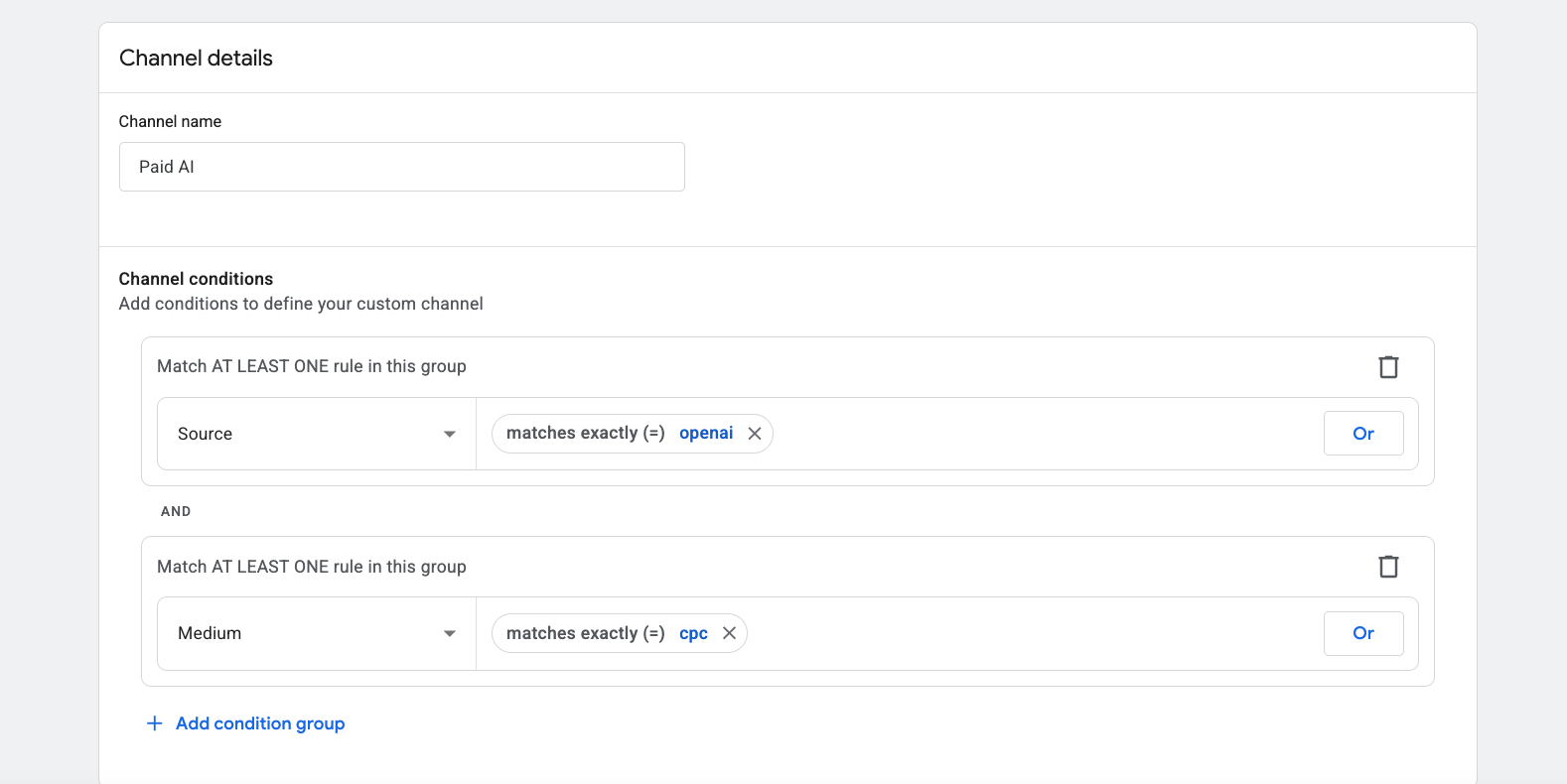
openai as source and cpc as medium.Using both source and medium keeps the channel precise. A source-only rule would also capture untagged organic ChatGPT sessions if OpenAI ever changes its referrer handling, and a medium-only rule would capture every paid source you run.
cpc as its medium rather than ai-assistant. The one real overlap is with Paid Other, and Step 2 removes it directly — which is why Paid AI works correctly even when it sits below AI Assistants in the list.
Step 2 — Exclude OpenAI from Paid Other
A session belongs to exactly one channel. Since openai plus cpc also satisfies the Paid Other definition, the Paid Other rule needs an explicit exclusion so the two rules stop overlapping.
- In the same custom channel group, open the Paid Other channel.
- Leave the existing condition in place:
Default channel group→ matches exactly (=) →Paid Other. - Add a second condition group joined by AND:
Source→ does not match exactly (=) →openai. - Save.
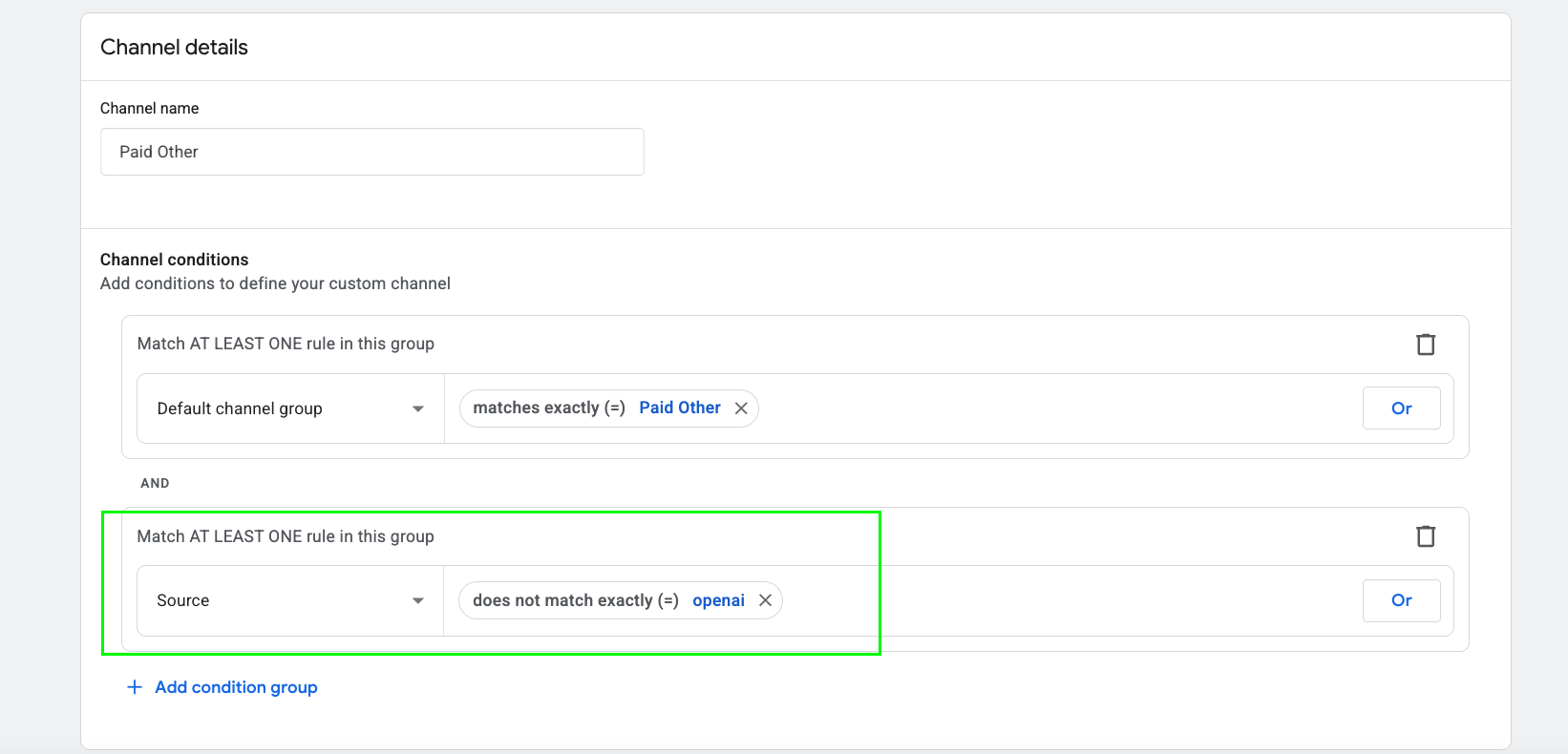
openai as a source.With both edits saved, your channel list contains a Paid AI channel for tagged OpenAI Ads traffic and an AI Assistants channel for organic AI referrals — measuring two different things, reported separately.

5. Generating the URLs with UTM Buddy
The tagging above is a fixed pattern with two variable pieces, which makes it a good fit for a saved template. Building it once in UTM Buddy means every OpenAI campaign inherits the same source, medium, and macro mapping without anyone retyping them.
Create an OpenAI Ads template
Save a template that mixes static values with OpenAI's macros:
- Source —
openai(static) - Medium —
cpc(static) - Campaign — filled in per campaign
- Term —
{ad_group_id}(macro) - Content —
{ad_id}(macro) - ID —
{campaign_id}(macro)
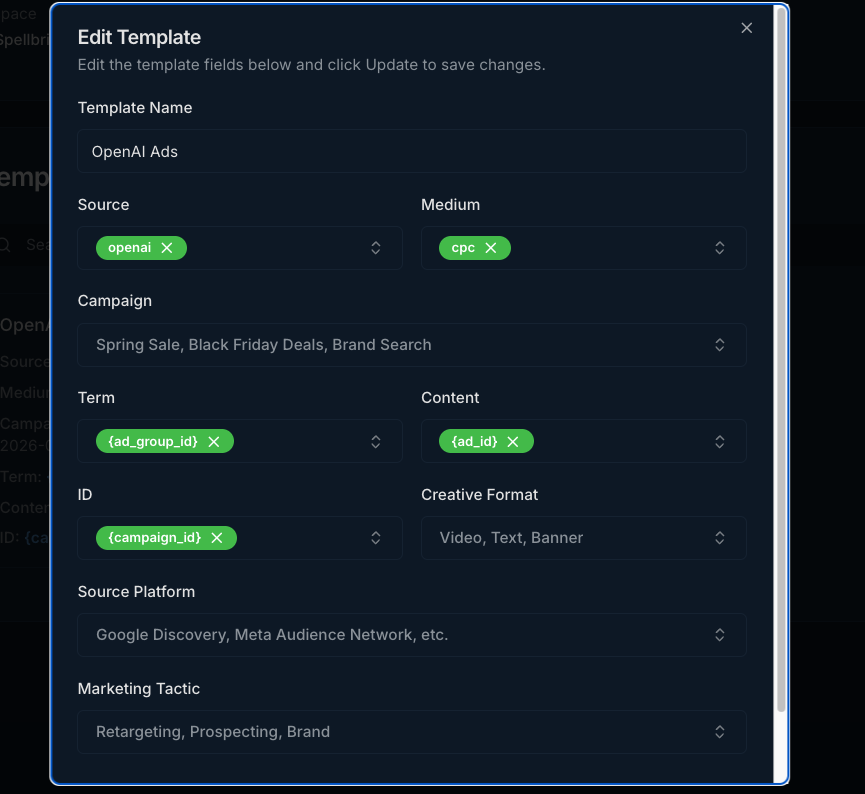
The macros pass through as literal text. UTM Buddy treats {ad_group_id} as the value of the parameter, and Ads Manager substitutes the real identifier at delivery time.
Copy the UTM string into Ads Manager
The Landing page query parameters field takes the parameter string only — no domain and no leading ?. Copy the UTM portion of the generated URL, starting at utm_source, and paste it into the field.
Verify the channel before you launch
Connect your GA4 property in UTM Buddy and use the URL preview to confirm classification. The preview reads your channel group rules and reports the channel the URL will be assigned to — so a correctly configured setup returns Paid AI rather than Paid Other or AI Assistants.
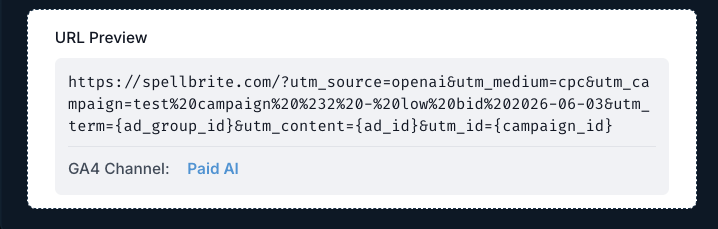
Checking this before launch is the difference between finding a misconfiguration now and finding it after a month of spend has been filed under the wrong channel. If the preview returns Paid Other, the Paid Other exclusion has not saved; if it returns AI Assistants, the parameters are not reaching the URL.
6. Seeing Paid AI in the Acquisition Reports
Once campaigns are delivering with the parameters applied, Paid AI appears as its own row in the acquisition reports with openai / cpc as its source and medium — separated from AI Assistants, and reportable against every metric GA4 tracks.
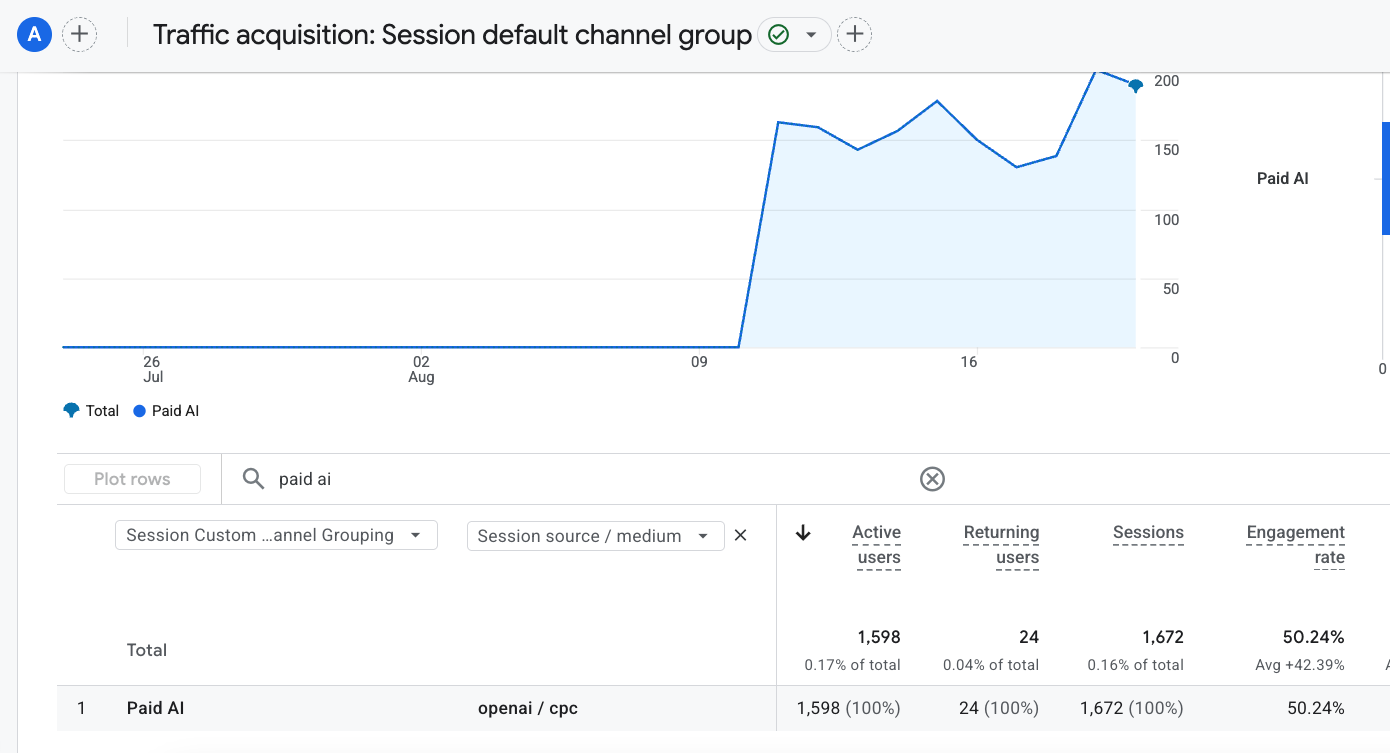
To switch groupings, change the primary dimension at the top of the report table from Session default channel group to your custom grouping — shown as Session custom channel grouping in the dimension dropdown. The same applies in reverse for the user-scoped report, where the dimension reads First user default channel group.
This works in both acquisition reports, and each answers a different question:
- Traffic acquisition — session-scoped. Use it to evaluate campaign performance, since it credits the source of each individual session.
- First user acquisition — user-scoped. Use it to see whether OpenAI Ads is introducing genuinely new users or reaching people who already know you.
Adding Session source / medium as a secondary dimension confirms the channel is matching on the values you expect. A Paid AI row that shows anything other than openai / cpc means a campaign somewhere is tagged inconsistently.
To make the custom grouping the one GA4 opens by default, set it as the property default in Admin → Data display → Channel groups. Otherwise, tell whoever reviews these reports that the dimension has to be switched each time — it is the single most common reason a correctly built custom channel appears to be missing.
Frequently Asked Questions
No. OpenAI Ads Manager has no auto-tagging and no click identifier equivalent to gclid that GA4 recognizes. Every campaign parameter must be added manually through the Landing page query parameters field. Without it, GA4 has no signal that the traffic was paid.
Five: {campaign_id}, {ad_group_id}, {ad_id}, {ad_account_id}, and {oppref}. Ads Manager populates them at delivery time, so the value reaching your landing page is the actual identifier for whatever served the impression. The {oppref} macro is the OpenAI click reference, used for server-side conversion attribution.
In the AI Assistants channel. Because ChatGPT is a recognized AI assistant referrer, GA4 assigns untagged clicks a medium of ai-assistant and groups them with organic ChatGPT traffic. Your paid clicks are counted, but they are pooled with traffic you did not pay for, which makes OpenAI Ads spend impossible to evaluate.
Go to Admin, then Data display, then Channel groups, and open a custom channel group. Add a channel named Paid AI with two condition groups joined by AND: Source matches exactly openai, and Medium matches exactly cpc. Move the channel above both AI Assistants and Paid Other so it is evaluated first.
Because GA4 would otherwise classify openai plus cpc as Paid Other, and a session can only belong to one channel. Add a second condition group to Paid Other with Source does not match exactly openai, joined by AND. This removes the overlap and keeps OpenAI Ads reporting only in Paid AI.
More specific settings take precedence. The hierarchy is Ad URL first, then Ad, then Ad Group, then Campaign. The field appends only missing parameters, so a value already present at the Ad URL level is never overwritten by a campaign, ad group, or ad-level setting.
Because the report is open on a different channel grouping. Paid AI is a custom channel, so it only appears when the report uses the grouping you created it in. If that grouping is not your property default, change the primary dimension from Session default channel group to your custom channel grouping. This applies to both Traffic acquisition and First user acquisition.
Wrapping Up
The full setup is three pieces: a campaign-level parameter string in Ads Manager, a Paid AI channel in GA4, and an exclusion on the Paid Other rule. Each takes a few minutes, and together they move OpenAI Ads out of a channel that mixes it with organic traffic into one that reports it on its own. The fourth step is remembering to open the acquisition reports on the right channel grouping, or making that grouping your property default.
Because OpenAI Ads is a recent platform, tagging conventions for it are not yet established across most organizations. Recording this pattern alongside your existing naming conventions means later campaigns inherit a consistent standard rather than accumulating source spellings that cannot be merged after the fact.
Build Every Campaign URL the Same Way
Saved templates, macro support, and GA4 channel preview — so a new ad platform doesn't become a new source of attribution errors.
Start Free Trial →